How do I register and manage a partner deal?
Partners register new prospects through Deal registration in the Partner Console. The registration holds the company domain during review. Approved registrations show the remaining lock period and connect new accounts on the registered domain to the partner.
Key takeaways
- Register the prospect company domain before client account creation.
- Existing customers require work through the client account.
- Check the status and remaining lock period after registration.
- Withdrawal releases the registered account.
Last updated 5 October 2026.
Screenshots use test data captured on 4 and 5 October 2026. Click a screenshot to open the full image.
Before you start
Use your partner ADMIN account. Confirm the prospect company name and work email domain. Prepare the contact details and a short record of work completed. Check whether the company already has a CVD Portal account.
Step 1. Open deal registration
- Open the Partner Console.
- Click
Deal registration. - Check the partner name in the header.
- Read the prospect table for an existing registration.
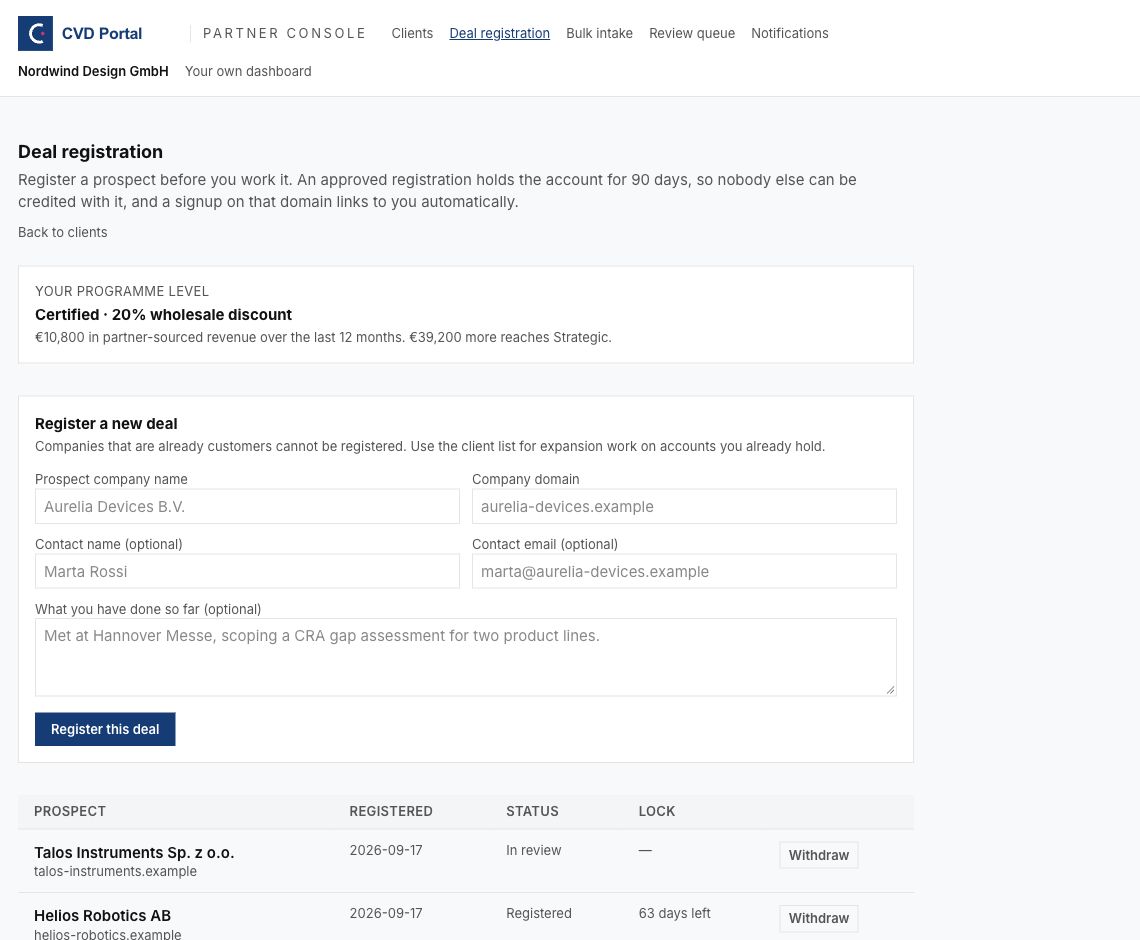
Figure 1. The form creates a registration. The table shows existing registrations.
Step 2. Register the prospect
- Enter the company name in
Prospect company name. - Enter the company work email domain in
Company domain. - Enter
Contact name (optional)when approved for use. - Enter
Contact email (optional)when approved for use. - Enter a short work record in
What you have done so far (optional). - Check the company name and domain.
- Click
Register this deal. - Wait for the registration message.
- Reload the page.
- Find the prospect in the table.
- Check that the status shows
In review.
Enter the domain used for the prospect's work email, such as manufacturer.example. The system can normalize a website or email address, but a checked domain makes the intended match clear.
A submitted registration holds the domain during review. The approved lock lasts 90 days from approval. The registration confirmation states the normal review time. Contact support if you need a status check.
Step 3. Track the result
| Status | Meaning | Action |
|---|---|---|
| In review | Registration awaits review. | Track the review result. |
| Registered | Registration is approved. | Check days left in Lock. |
| Declined | Registration was rejected. | Read the displayed reason. |
| Lapsed | Approved lock expired. | Ask support about further registration. |
| Closed | The registration converted. | Continue with client onboarding or client work. |
| Withdrawn | The partner released the registration. | Record the withdrawal in the project. |
- Open
Deal registration. - Find the correct prospect domain.
- Read
Status. - Read
Lockfor a registered deal. - Ask support for an extension before expiry if the deal remains active.
- Use the client onboarding manual when the client is ready.
The date under Registered is the submission date. The lock period starts at approval. Deal approval creates a domain link for future registration. Check the client list after client registration.
Step 4. Withdraw a registration when work stops
Withdraw only after your team agrees to release the account.
- Find the correct prospect row.
- Click
Withdraw. - Check the question
Release this account?. - Click
Cancelif the account must remain registered. - Click
Yes, withdrawif the release is approved. - Wait for the update.
- Reload the page.
- Check that the row shows
Withdrawn.
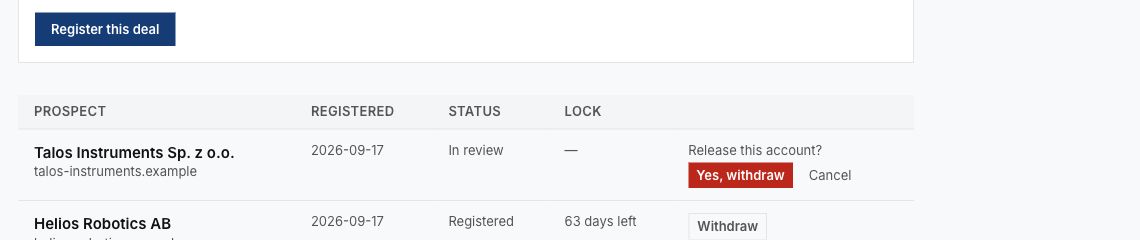
Figure 2. Confirm withdrawal only for the correct prospect.
Withdrawal releases the account for other registrations. Keep the decision with your sales record.
Common problems
| Problem | Corrective action |
|---|---|
| The domain is rejected. | Check the company website and work email domain. |
| You already hold a registration. | Use the existing row. |
| The domain is registered by another partner. | Contact support with the source record for the prospect. |
| The company is already a customer. | Use the client account for expansion work. |
| The approved lock will expire soon. | Ask support about an extension before expiry. |
| A new client is missing from Clients. | Ask support to check the registered domain and client email domain. |
Recommended practices
- Check the domain with the prospect.
- Register before the prospect creates the client account.
- Record review and expiry dates in your work plan.
- Include enough work history for the registration review.
- Withdraw registrations when the work has stopped.
Completion checklist
- Company name and domain checked.
- Registration appears in the prospect table.
- Status reviewed.
- Lock expiry follow-up assigned when applicable.
- Client onboarding or withdrawal recorded.