How do I review client work and decide export requests?
Partners use Review queue to find client tasks that require attention. Queue links open the relevant client product on a consultant seat. Partners review evidence, follow up information requests, and record export decisions after checking the current assessment.
Key takeaways
- Check the client banner after opening a queue link.
- Export reviews appear before routine checklist work.
- The requester cannot decide a request when a second admin is required.
- Assessment changes can make an earlier approval stale.
Last updated 5 October 2026.
Screenshots use test data captured on 4 and 5 October 2026. Click a screenshot to open the full image.
Before you start
Use your partner ADMIN account. Agree the review responsibilities with the client. Check that partner access is enabled. Prepare the evidence and acceptance criteria for any export decision.
Step 1. Read the review queue
- Open the Partner Console.
- Click
Review queue. - Read the total attention items.
- Find the client company.
- Read the product names and task links.
- Identify the task that you are responsible for.
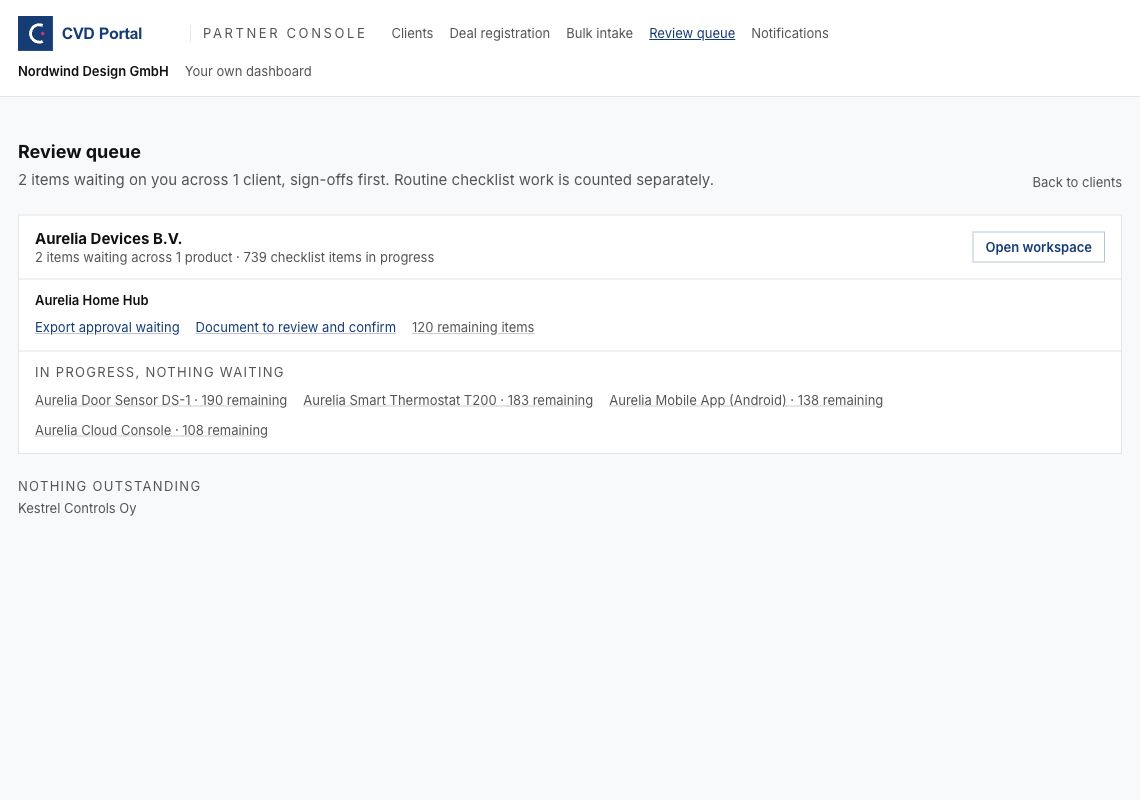
Figure 1. The queue separates attention tasks from routine checklist work.
| Queue item | Destination | Required work |
|---|---|---|
| Export approval waiting | Conformity. | Review the technical file and decide the request. |
| Document to review and confirm | Assess. | Check draft document suggestions. |
| Information request outstanding | Requirements. | Check the request and follow up the responsible person. |
| Review trigger open | Monitoring. | Review the change and record the response. |
| Classification not confirmed | Assess. | Check product facts and save the approved classification. |
| Remaining items | Requirements. | Complete routine product work. |
Products under In progress, nothing waiting can still have incomplete checklist work. Clients under Partner access turned off have hidden work. Treat access loss as an open access issue.
Step 2. Open a client task
- Click the task link for the correct client product.
- Check the client name in the consultant banner.
- Check the product name.
- Check that the expected tab is active.
- Read the current task state.
The task can have changed since the queue or email was opened. Review the current record before taking action.
Step 3. Review an export request
- Click
Export approval waitingin the queue. - Open
Conformityif required. - Find
Export review. - Read the requester, request date, and request note.
- Check whether a second admin review is required.
- Review the saved assessment, classification, product context, and evidence.
- Check remaining work and export blockers.
- Return to
Conformity. - Enter the review result in the decision note field.
- Click
Approvewhen the review supports approval. - Click
Rejectwhen required work remains or the review fails. - Check the saved status, reviewer identity, and note.
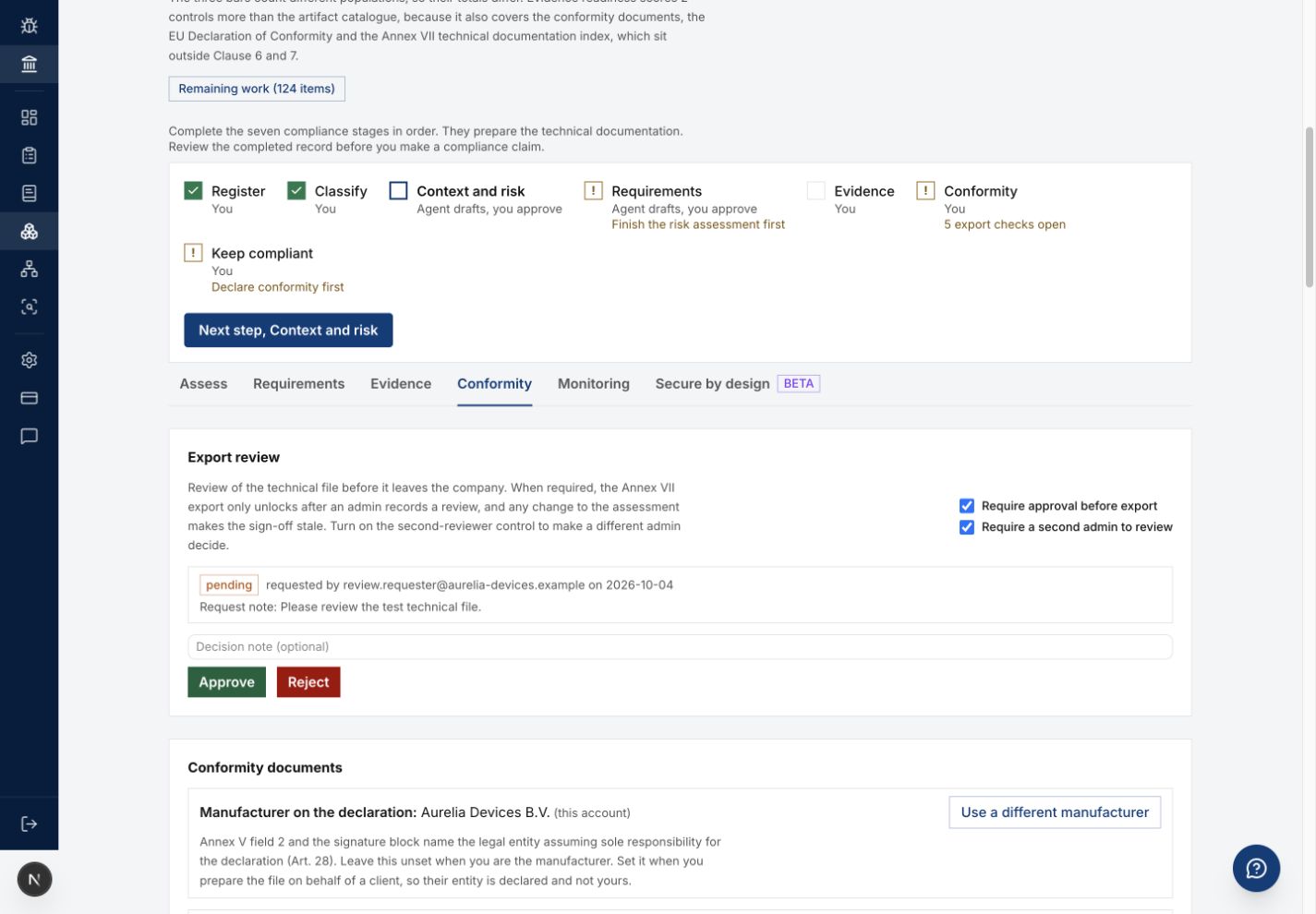
Figure 2. The review controls show the required reviewer arrangement.
When Require a second admin to review is enabled, the requester cannot decide the same request. Ask another authorized administrator to review. If the controls are unavailable, check whether you are the requester, whether the request is still pending, and whether the seat is writable.
An approval applies to the assessment state that was reviewed. Later changes can make approval stale. Complete the change and request a new review before export. Export can remain blocked by other conformance checks after approval.
Step 4. Resolve another queue item
Draft documents
- Open the document review task.
- Read the proposed controls and product context.
- Confirm only supported suggestions.
- Check the saved result.
Use the document manual for the full procedure.
Information requests
- Open the information request task.
- Read the requested information and assignee.
- Check the due date and current response.
- Follow up the responsible person through the agreed client process.
- Review the response in the product record.
- Record the next action if the response remains incomplete.
Review triggers and classification
- Open the task.
- Read the trigger or classification record.
- Confirm the relevant facts with the client.
- Save the reviewed change through the panel controls.
- Check the saved state.
Use the product manual for the relevant panel steps.
Step 5. Check the queue after completion
- Click
Return to your own workspace. - Open
Review queue. - Check the client and product again.
- Confirm the resolved attention item has cleared.
- Assign each remaining task to a named person.
- Record the next review date.
Common problems
| Problem | Corrective action |
|---|---|
| The queue is clear but product work remains. | Check the routine checklist items. |
| A client has hidden work. | Ask the client administrator to review partner access. |
| You cannot approve your own request. | Ask another admin to decide when second review is required. |
| Approval is stale. | Review the changed assessment and request a new review. |
| Export stays blocked after approval. | Check the other export conformance checks. |
| A completed item remains in the queue. | Reload the product and queue. Check whether the saved action completed. |
Recommended practices
- Review export requests before routine checklist work.
- Record specific reasons for rejection.
- Complete assessment changes before requesting review.
- Check queue links against the active client banner.
- Keep a named owner for each unresolved task.
Completion checklist
- Correct client and product checked.
- Current record reviewed.
- Decision or task result saved.
- Reviewer identity and note checked when applicable.
- Queue checked after completion.
- Remaining tasks assigned.