How do I set partner notifications and act on emails?
Partners set email notifications in the Partner Console. Export requests, document intake completion, and a daily review digest help partners track client work. Notification links require sign-in and open the relevant review or intake page.
Key takeaways
- Notification preferences apply to the partner account.
- Emails go to partner company administrators.
- Email links require sign-in.
- The daily digest is sent when client work requires attention.
Last updated 5 October 2026.
Screenshots use test data captured on 4 and 5 October 2026. Click a screenshot to open the full image.
Before you start
Use your partner ADMIN account. Agree who checks partner email and who covers absence. Complete client onboarding before you use a notification to enter client work.
Step 1. Check recipients
- Open the Partner Console.
- Click
Notifications. - Read the recipient addresses above the settings.
- Check that the intended partner administrators appear.
- Ask your account administrator to review team access if a recipient is wrong.
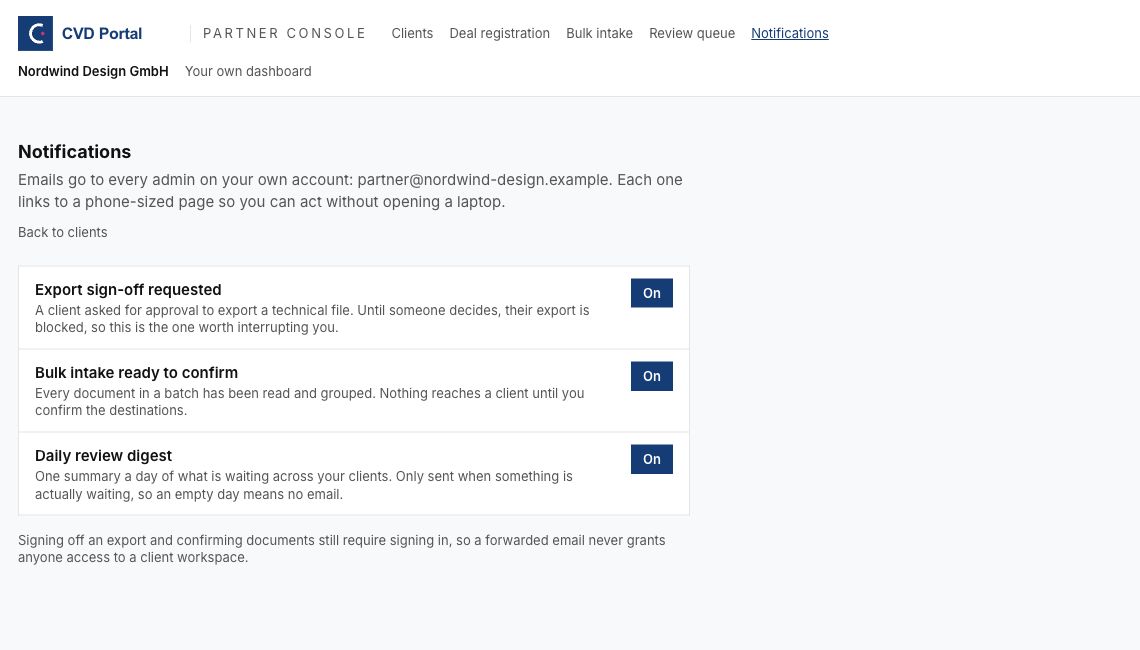
Figure 1. Each button shows the saved preference state.
Step 2. Set each preference
| Notification | Trigger | Action after receipt |
|---|---|---|
| Export sign-off requested | A client requests export review. | Review the product and record a decision. |
| Bulk intake ready to confirm | A batch has been read and grouped. | Check destinations before dispatch. |
| Daily review digest | Work awaits attention across clients. | Open the review queue and assign work. |
- Find the notification row.
- Read the current button state.
- Click
Offto turn the notification on. - Wait for the button to show
On. - Click
Onto turn the notification off when agreed with your team. - Wait for the button to show
Off. - Reload
Notifications. - Check all saved states.
A failed save can restore the earlier state and show an error. Check the state after reload.
Step 3. Act on an export request
- Open the link in the notification email.
- Sign in with your partner account when required.
- Check the client and product name.
- Open the product review task.
- Review the assessment and evidence.
- Record approval or rejection through the export review controls.
- Check the saved decision.
Follow the review queue manual for decision steps and second reviewer checks. When a second reviewer is required, the requester cannot decide the same request.
Step 4. Act on intake completion
- Open the link in the intake email.
- Sign in when required.
- Check the batch and each destination.
- Dispatch a group only after you check its documents.
- Use the full Bulk intake screen for a new client or an unassigned group.
- Review filed draft evidence in the client workspace.
The phone page supports groups with a known destination. Use the desktop page for groups that require a new client or a destination decision. Follow the document manual for all steps.
Step 5. Work through the daily digest
- Open the digest link.
- Sign in when required.
- Open
Review queue. - Review approval tasks first.
- Assign document and information tasks to a named person.
- Check the queue again after each task is complete.
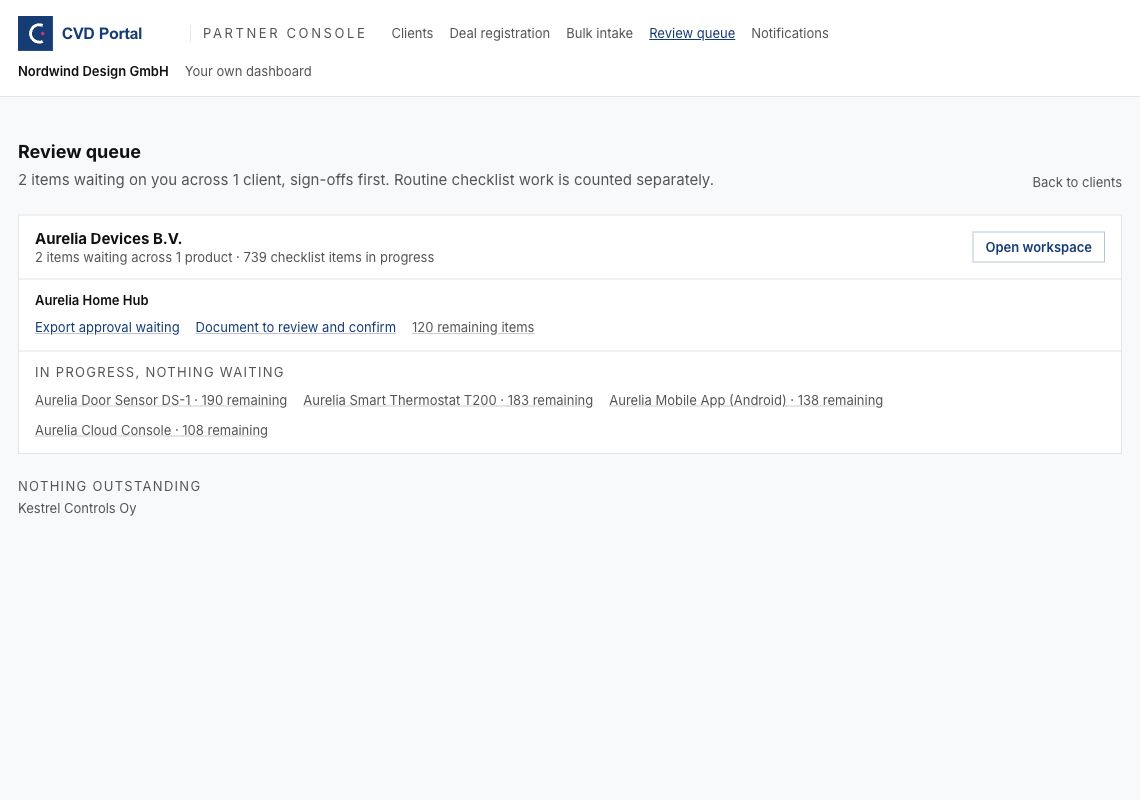
Figure 2. The queue shows the current work after an email is sent.
The queue can change after the email was sent. Use the current page to check the saved task state.
Common problems
| Problem | Corrective action |
|---|---|
| No digest arrives. | Check Daily review digest is On. Check whether the queue has attention tasks. |
| An email link asks for sign-in. | Use the approved partner account. |
| A forwarded email cannot open a client. | Check the recipient account role and client access. |
| A preference returns to its earlier state. | Reload the page. Retry after checking the error. |
| A phone intake group needs a decision. | Open Bulk intake on the desktop page. |
Recommended practices
- Keep a named person responsible for notification review.
- Keep export and intake notifications enabled when your team handles those tasks.
- Check the live task before you act on an old email.
- Review recipients when partner team membership changes.
Completion checklist
- Recipient list checked.
- Each preference checked after reload.
- Email review owner assigned.
- Export and intake procedures understood.
- Absence cover assigned.